Setup scenario is that user folders are in a single centralized share and they all access their folder with proper permission on the folders so that only they can have an access to a folder.
Some of the users had intermittent issues of their folders not syncing properly or their files would randomly get locked and they could not save the file without saving as different name.
FIX:
Give root folder that is shared out a special permissions for "Authenticated Users" (or some other group if you wish to limit share access to only certain user group) under advanced options. The permissions required are: "Traverse folder /execute file", "Read attributes" and "read extended attributes"
NOTE:
Permissions above need to be applied only on root folder so make sure "This folder only" is selected while changing permissions.
Showing posts with label Microsoft. Show all posts
Showing posts with label Microsoft. Show all posts
Tuesday, March 25, 2014

Tuesday, September 10, 2013
Basic help powershell commands that make life easier
get-help
displays help for desired commandlet
get-help -full
displays full help for desired commandlet including examples
get-help -online
if you have internet access this will display online help for any commandlets desired
update-help
downloads and installs help files from internet
show-command
opens gui for desired commandlet where you can see whole bunch of options and parameters. If desired these parameters can be filled out in gui and copied to run in PowerShell window in order to see exact syntax
get-command
this will list commands that pertain not only to PowerShell but a whole system
get-member
gets the properties and methods of objects. This is very useful to see what custom fields/methods you can use for specific cmdlet
displays help for desired commandlet
get-help
displays full help for desired commandlet including examples
get-help
if you have internet access this will display online help for any commandlets desired
update-help
downloads and installs help files from internet
show-command
opens gui for desired commandlet where you can see whole bunch of options and parameters. If desired these parameters can be filled out in gui and copied to run in PowerShell window in order to see exact syntax
get-command
this will list commands that pertain not only to PowerShell but a whole system
get-member
gets the properties and methods of objects. This is very useful to see what custom fields/methods you can use for specific cmdlet
Monday, September 9, 2013
Script to find files in size greater than desired size
Very useful when you need to find large size files on your system. This command can be run locally or on remote system as long as you have admin rights to remote system.
Get-ChildItem \\servername\c$ -Recurse -ErrorAction "SilentlyContinue" | Where-Object {$_.Length -gt 100MB} | Export-Csv c:\temp\myLargeFilesOnC_Report1.csv
Tuesday, August 13, 2013
Query interface information on remote machines
I found a nice script for this task that can be found by following link:
Scrip Source
The powershell command to run in order to query list of computers from text file list would be as follows:
$computers = Get-Content -Path c:\scripts\servers.txt
.\getipinfo.ps1 -ComputerName $computers | ft -AutoSize
This is the actual script:
[cmdletbinding()]
param (
[parameter(ValueFromPipeline=$true,ValueFromPipelineByPropertyName=$true)]
[string[]]$ComputerName = $env:computername
)
begin {}
process {
foreach ($Computer in $ComputerName) {
if(Test-Connection -ComputerName $Computer -Count 1 -ea 0) {
$Networks = Get-WmiObject Win32_NetworkAdapterConfiguration -ComputerName $Computer | ? {$_.IPEnabled}
foreach ($Network in $Networks) {
$IPAddress = $Network.IpAddress[0]
$SubnetMask = $Network.IPSubnet[0]
$DefaultGateway = $Network.DefaultIPGateway
$DNSServers = $Network.DNSServerSearchOrder
$IsDHCPEnabled = $false
If($network.DHCPEnabled) {
$IsDHCPEnabled = $true
}
$MACAddress = $Network.MACAddress
$OutputObj = New-Object -Type PSObject
$OutputObj | Add-Member -MemberType NoteProperty -Name ComputerName -Value $Computer.ToUpper()
$OutputObj | Add-Member -MemberType NoteProperty -Name IPAddress -Value $IPAddress
$OutputObj | Add-Member -MemberType NoteProperty -Name SubnetMask -Value $SubnetMask
$OutputObj | Add-Member -MemberType NoteProperty -Name Gateway -Value $DefaultGateway
$OutputObj | Add-Member -MemberType NoteProperty -Name IsDHCPEnabled -Value $IsDHCPEnabled
$OutputObj | Add-Member -MemberType NoteProperty -Name DNSServers -Value $DNSServers
$OutputObj | Add-Member -MemberType NoteProperty -Name MACAddress -Value $MACAddress
$OutputObj
}
}
}
}
end {}
Scrip Source
The powershell command to run in order to query list of computers from text file list would be as follows:
$computers = Get-Content -Path c:\scripts\servers.txt
.\getipinfo.ps1 -ComputerName $computers | ft -AutoSize
This is the actual script:
[cmdletbinding()]
param (
[parameter(ValueFromPipeline=$true,ValueFromPipelineByPropertyName=$true)]
[string[]]$ComputerName = $env:computername
)
begin {}
process {
foreach ($Computer in $ComputerName) {
if(Test-Connection -ComputerName $Computer -Count 1 -ea 0) {
$Networks = Get-WmiObject Win32_NetworkAdapterConfiguration -ComputerName $Computer | ? {$_.IPEnabled}
foreach ($Network in $Networks) {
$IPAddress = $Network.IpAddress[0]
$SubnetMask = $Network.IPSubnet[0]
$DefaultGateway = $Network.DefaultIPGateway
$DNSServers = $Network.DNSServerSearchOrder
$IsDHCPEnabled = $false
If($network.DHCPEnabled) {
$IsDHCPEnabled = $true
}
$MACAddress = $Network.MACAddress
$OutputObj = New-Object -Type PSObject
$OutputObj | Add-Member -MemberType NoteProperty -Name ComputerName -Value $Computer.ToUpper()
$OutputObj | Add-Member -MemberType NoteProperty -Name IPAddress -Value $IPAddress
$OutputObj | Add-Member -MemberType NoteProperty -Name SubnetMask -Value $SubnetMask
$OutputObj | Add-Member -MemberType NoteProperty -Name Gateway -Value $DefaultGateway
$OutputObj | Add-Member -MemberType NoteProperty -Name IsDHCPEnabled -Value $IsDHCPEnabled
$OutputObj | Add-Member -MemberType NoteProperty -Name DNSServers -Value $DNSServers
$OutputObj | Add-Member -MemberType NoteProperty -Name MACAddress -Value $MACAddress
$OutputObj
}
}
}
}
end {}
Wednesday, July 10, 2013
Microsoft Active Directory Topology Diagrammer
Totally useful diagraming tool!!! It requires you to have Visio as well.
Get tool here from Microsoft
Get tool here from Microsoft
Microsoft Surface Pro going to sleep every 2 minutes
I have been dealing with this issue for a while now and kept putting it on back burner. Today I just got so pissed off that I decided to have this done now or never. And thank God I did!!
For whatever odd reason surface pro was going to sleep after 2 minutes no matter what my power options were set to. I tried all kinds of settings.
After some research I found that apparently there is a power setting not available in GUI on Microsoft windows 7 and 8 this setting is called "system unattended sleep timeout". If you add following registry setting:[HKEY_LOCAL_MACHINE\SYSTEM\CurrentControlSet\Control\Power\PowerSettings\238C9FA8-0AAD-41ED-83F4-97BE242C8F20\7bc4a2f9-d8fc-4469-b07b-33eb785aaca0]
"Attributes"=dword:00000002
and go to power setting --> sleep - you will see a new option for "system unattended sleep timeout". Change this setting to your desired value and problems gone!!!!
For whatever odd reason surface pro was going to sleep after 2 minutes no matter what my power options were set to. I tried all kinds of settings.
After some research I found that apparently there is a power setting not available in GUI on Microsoft windows 7 and 8 this setting is called "system unattended sleep timeout". If you add following registry setting:[HKEY_LOCAL_MACHINE\SYSTEM\CurrentControlSet\Control\Power\PowerSettings\238C9FA8-0AAD-41ED-83F4-97BE242C8F20\7bc4a2f9-d8fc-4469-b07b-33eb785aaca0]
"Attributes"=dword:00000002
and go to power setting --> sleep - you will see a new option for "system unattended sleep timeout". Change this setting to your desired value and problems gone!!!!
Tuesday, May 21, 2013
Time sync with external NTP on windows server 2008 R2 DC
- Locate PDC - C:\>netdom /query fsmo
- Log in to PDC Server and open the command prompt.
- Stop the W32Time service: C:\>net stop w32time
- Configure the external time sources, type: C:\> w32tm /config /syncfromflags:manual /manualpeerlist:”0.pool.ntp.org, 1.pool.ntp.org, 2.pool.ntp.org”
- Make your PDC a reliable time source for the clients. Type: C:\>w32tm /config /reliable:yes
- Start the w32time service: C:\>net start w32time
- The windows time service should begin synchronizing the time. You can check the external NTP servers in the time configuration by typing: C:\>w32tm /query /configuration
- Check the Event Viewer for any errors.
Thursday, February 28, 2013
Exchange DAG replication using secondary NIC betwene servers on different subnets
Recently I ran into a problem with Exchange 2010 DAG configuration. I needed to replicate databases between servers that were geographically in different sites and were each on their own separate subnets. For this purpose I wanted to use our secondary data line in order to avoid overloading our main production line with replication traffic. DAG was all set and replicating fine over production line but when I disabled replication on main NIC's and enabled it on secondary NIC's routed via secondary data line, Exchange was still pushing replication via primary NIC. Issue resolved after I collapsed DAG network on secondary ISP into a single DAG network adding both near and far subnet into it. Great article that talks just about that particular setup you can find right here: http://blogs.technet.com/b/timmcmic/archive/2011/09/26/exchange-2010-collapsing-dag-networks.aspx
Saturday, October 3, 2009
Problem with shutting down computer
My parents had a problem with shutting down their computer recently. After they would click on "shut down", system would freeze and "shut down" option box would take 3-4 minutes to come up. It was pretty annoying. I checked their computer and found following error message on every shutdown attempt:
"the server {9B1F122C-2982-4E91-AA8B-E071D54F2A4D} did not register with dcom within the required timeout."
I did some research myself and cam across an article with fix that was exactly what fixed this issue. What I did was run some regsrv32 commands on few dll's causing the issue. After this was done my problem was resolved. Below is the list of commands ran.
net stop wuauserv
regsvr32 /s wuapi.dll
regsvr32 /s wups.dll
regsvr32 /s wuaueng.dll
regsvr32 /s wuaueng1.dll
regsvr32 /s wucltui.dll
regsvr32 /s wuweb.dll
regsvr32 /s jscript.dll
regsvr32 /s atl.dll
regsvr32 /s softpub.dll
regsvr32 /s msxml3.dll
net start wuauserv
Helpful article was found @ http://www.windowsbbs.com/windows-xp/47229-problems-shutdown-reboot-logoff-dcom-automatic-updates.html
"the server {9B1F122C-2982-4E91-AA8B-E071D54F2A4D} did not register with dcom within the required timeout."
I did some research myself and cam across an article with fix that was exactly what fixed this issue. What I did was run some regsrv32 commands on few dll's causing the issue. After this was done my problem was resolved. Below is the list of commands ran.
net stop wuauserv
regsvr32 /s wuapi.dll
regsvr32 /s wups.dll
regsvr32 /s wuaueng.dll
regsvr32 /s wuaueng1.dll
regsvr32 /s wucltui.dll
regsvr32 /s wuweb.dll
regsvr32 /s jscript.dll
regsvr32 /s atl.dll
regsvr32 /s softpub.dll
regsvr32 /s msxml3.dll
net start wuauserv
Helpful article was found @ http://www.windowsbbs.com/windows-xp/47229-problems-shutdown-reboot-logoff-dcom-automatic-updates.html
Wednesday, August 26, 2009
MSN update problems
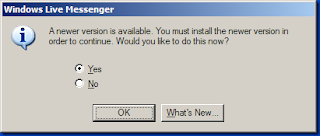
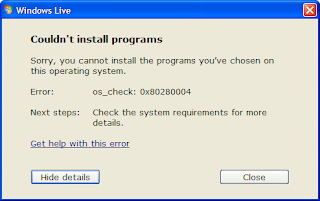
I have a customer that runs MSN on windows 2003 TS server and suddenly MSN is requiring update and guess what? It will not sign in until update is done. Well that is not all. The new MSN update is not supported on win 2003 box.
Hehehe, am I surprised. Off course not. After all it is Microsoft. Well below is the more in detail screenshot of what pop ups I get and solution to this nuisance.
update:
error update:
Ok, so what do you do?
There is two solutions:
1. Install patch so that MSN continues running without updating
2. Install update regardless incompatibility
Follow the link to more complete solution:
http://messengergeek.spaces.live.com/blog/cns!E3785B1281BBDA1!3406.entry
Hehehe, am I surprised. Off course not. After all it is Microsoft. Well below is the more in detail screenshot of what pop ups I get and solution to this nuisance.
update:

error update:

Ok, so what do you do?
There is two solutions:
1. Install patch so that MSN continues running without updating
2. Install update regardless incompatibility
Follow the link to more complete solution:
http://messengergeek.spaces.live.com/blog/cns!E3785B1281BBDA1!3406.entry
Subscribe to:
Posts (Atom)